Virtuosos of Price
Booking Flow Audit
TL;DR
Getting views but not enough bookings? The problem may sit somewhere between the search result and the checkout screen. A price cut can reduce your revenue and leave that friction in place.
To find the friction, walk your own booking flow as a guest, in five stages:
- Search result
- Listing page
- Calendar
- Checkout price
- Booking requirements
Run stages one to three logged out, in a private window. Run stages four and five in a separate guest account with no saved payment method, and stop before the final confirm or request button.
Your baseline is the price on the search tile. Airbnb's April 2025 announcement says guests see the total price including all fees in search results. Check on screen how your tile labels that price and whether taxes are included.
This guide gives you the steps for each stage, a pass or fail check after each one, and a rule for when to hand the work off.
Key Takeaways
- A dashboard shows results, not screens. Walking the flow as a guest is one way to find friction in your photos, calendar settings, or booking requirements.
- Each stage can fail on its own. Fixing one stage without checking the others can leave friction in place.
- Calendar settings can hide dates. Orphan gaps, preparation time, and advance notice can make dates unbookable for a guest.
- The search tile price is your baseline. Compare it with the listing page and the checkout line items.
- One pass is not enough. A setting that works for a weekend stay can make a week-long stay impossible to book, so repeat the audit across stay lengths.
Why an audit run as a guest finds what a dashboard cannot
What a dashboard actually reports
A dashboard summarizes what happened. It does not show you why a guest left.
A guest who saw your listing, clicked through, hit a wall, and left without booking may not appear in your data as a named failure. When you walk the flow yourself, you meet the same walls a guest meets:
- a photo that loads slowly on a mobile connection
- a calendar gap that cannot be selected
- a minimum stay setting that makes a guest's dates return no availability
Why the host view is not the guest view
When you are logged into your host account and open your own listing, you are not in the session a guest uses. So test logged out, then compare what you see with your host view. Any difference you find may be a difference your guests experience.
That is why the clean test setup below is not optional. The rest of the audit depends on it.
Setting up a clean test
Removing your host identity from the session
These are the test rules. Every stage below refers back to them.
| Stages | Session to use | What to keep in mind |
|---|---|---|
| One to three | Log out of Airbnb completely and open a private or incognito window. Use a second device if you have one. | A device that has never been logged into your host account gives you the cleanest starting point. |
| Four and five | A separate guest account with no saved payment method. | Check Airbnb's current terms first. If they do not allow a second account, take stages four and five only as far as the logged-out view allows. |
| Host comparisons | Keep your host account open separately, on your primary device or in a separate browser profile. | You need it for the comparisons in stages two, three and five. |
The stop rule for stages four and five:
- Stop before the final confirm or request button.
- Confirm on screen that no payment is requested before you continue.
- Go as far as the screens allow without entering payment details.
- If the flow asks for payment before it shows the price breakdown, stop there and record where.
Choosing the right dates and guest counts to test
Dates. Use dates that are open on your calendar and at least two weeks out, because an advance notice setting can make near-term dates unbookable.
The one exception: the stage three calendar tests (advance notice, preparation time, and gaps between existing bookings) use whatever dates they need, including near-term ones. If your advance notice window blocks a near-term gap, record it as notice-blocked, not as an orphan gap.
Stay lengths. Test three stay types, because each can expose different calendar blocks:
- a two-night weekend stay
- a midweek stay of three to four nights
- a stay of seven nights or longer
Guest counts. Start with the guest count that appears most often in your booking history. Then test one count above and one below, capped at your listing's capacity. The price and availability a guest sees can change with the guest count.
For each combination, record what the date picker allows and what the screen shows.
Searching as a guest searches
Many guests do not know your listing name, so search the way they do:
- Enter the city or neighborhood.
- Set the dates and the guest count.
- Decide in advance how many pages of results you will scan, and record that number.
- Scroll through the results and stop at that page.
The fixed scope makes each audit pass comparable to the next.
Stage one: the search result
Goal: confirm your listing shows up, and see what its tile tells a guest before they click.
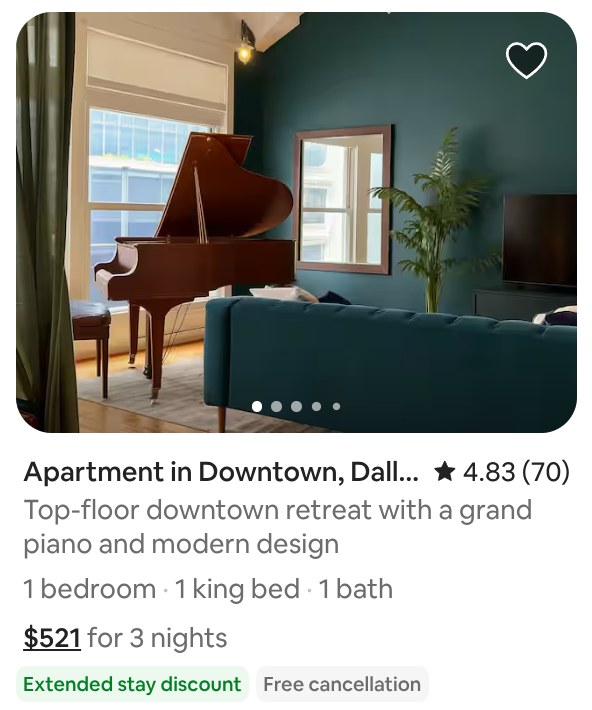
Does your listing appear for the dates and guest count you searched
- Run the search in your clean session.
- Note whether your listing appears within the pages you decided to scan.
- If it appears, record its position. Position is not fixed and may vary across searches, so repeat the search and record each result.
- If it does not appear, test three settings on screen and record what the guest side shows for each:
- Do the dates fall within your availability window?
- Does your minimum stay allow the length of stay you searched?
- Is the guest count within your listing's capacity?
- Apply the amenity filters a guest would use for your area. Check whether your listing still appears for each amenity you want to be found for.
You are looking for a pattern. Does your listing appear for searches that match your target guest? Does it fail to appear where you would expect it to show?
What the search tile communicates before a guest clicks
The tile is your listing's first impression. Look at it with fresh eyes:
- Lead photo. Does it show the best feature of the space clearly and quickly? Or does the guest need to already know what they are looking at?
- Headline words. On your phone, check how much text shows with the photo. The most important words should come first, because the rest may not be visible.
- Price. Note how the tile labels the price: a total or a nightly figure, and whether taxes are included or noted separately. This is the figure to treat as the guest's price expectation. You will compare it in stages two and four.
| Check | What to record | Fail if |
|---|---|---|
| Listing appears for the tested dates and guest count | Yes or no, and position if yes | It is absent for dates within your availability window |
| Amenity filters | Whether it appears for each amenity you offer | It is missing for an amenity you provide |
| Lead photo on the tile | Your honest assessment | It needs prior knowledge to read, or shows clutter or poor light |
| Headline key words on your phone | How much shows | The key descriptor is not visible on a standard mobile screen |
| Price label | Total or nightly, and whether taxes are noted | The label is ambiguous, or differs from your configured rate with no visible reason |
Stage two: the listing page
Goal: check that the page a guest lands on keeps them reading, and that its price matches the tile.
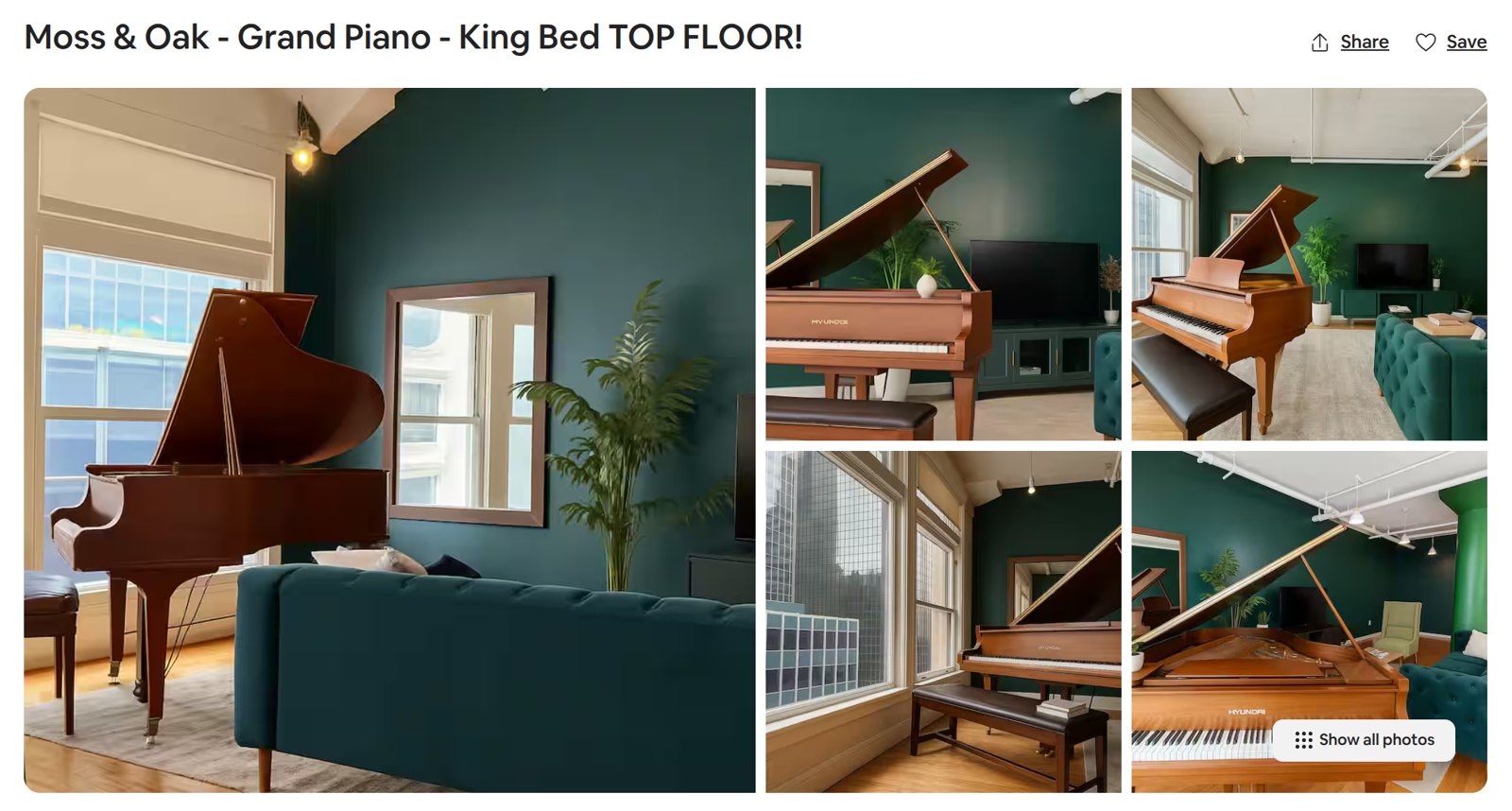
Photos, title, and the first impression above the fold
- Click through from the search result. Do not go straight to your listing URL, because you want to arrive the way a guest arrives, with the search context intact.
- Check the lead photo on desktop and on mobile. Is it your strongest photo? Is it well lit, well composed, and free of clutter? A guest who is not drawn in by the first photo may not scroll.
- Read the title as if you have never seen it. Does it say something specific about the space, or is it a generic label?
A title that names a feature or a setting gives a guest more to hold onto than one that names only a category. Neither phrasing is certain to perform better, but specificity gives a guest a reason to keep reading.
The price shown on the listing page
- Note the price on the listing page.
- Record whether each figure is a total or a nightly figure.
- Compare like with like against the search tile price.
Decision rule: if the listing page price and the search tile price differ with no visible explanation, that is a fail. Record both numbers and check your pricing settings before you move on. A guest who sees one total in search and another on the listing page may have a reason to distrust the listing.
The description, amenities, and what stops a guest scrolling
- Scroll the page and note where your attention drops. That may be where a guest's attention drops too.
- Ask someone unfamiliar with the listing to scroll it, and note where they stop.
- Check that the description answers a guest's questions before they ask: what the space is like, what is nearby, what guests can do there, and what they should know before they book.
- Compare your amenities with your photos. An amenity that is listed but not visible in a photo creates a credibility gap. If you list a workspace, a guest should be able to see it.
- Open your amenity settings and confirm that every amenity you actually provide is checked.
| Check | What to record | Fail if |
|---|---|---|
| Price matches the tile, like for like | Both prices, each marked total or nightly | The figures differ with no visible explanation |
| Lead photo is your strongest | Which photo leads, and why | A less compelling photo leads |
| Description answers likely questions | Any gap you find | A question you can name (for example parking, check-in method, or noise) is unanswered |
| Amenities are checked in settings | The checked amenities, confirmed on screen | An amenity you offer is not checked |
Stage three: the calendar and availability settings
Goal: find every date a guest cannot pick, and learn which setting blocks it.
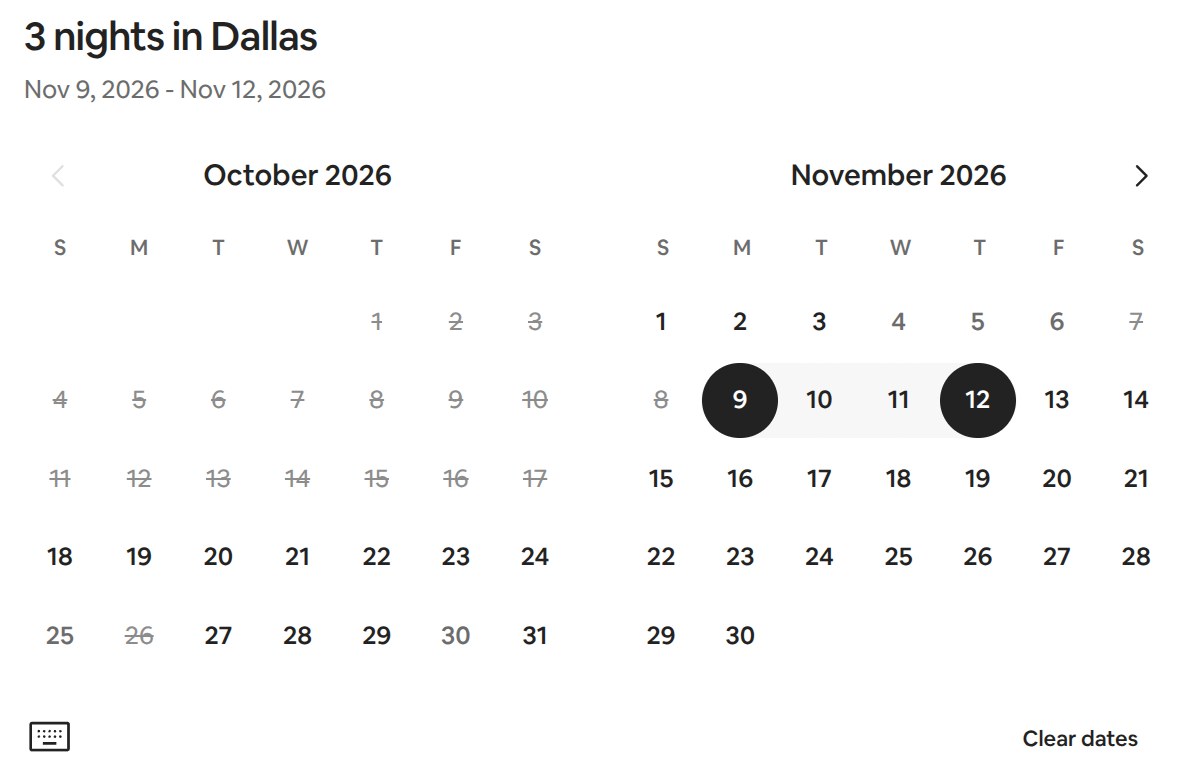
Blocked nights, orphan gaps, and minimum stay
An orphan gap is a stretch of open nights between two bookings that is shorter than your minimum stay. A guest cannot book it.
- Open the date picker on your listing page and look at it the way a guest does.
- Note every date the picker will not let you select, and look for patterns.
- For every gap between existing bookings in the next 90 days, try to start a booking.
- If the picker refuses a gap, record the gap's length and compare it with your minimum stay.
- Record what the screen says when it refuses the dates. A crossed out date with no reason given tells the guest nothing about what to try next.
To address orphan gaps, review the gap-related options in your host calendar settings, if you see them.
Advance notice, preparation time, and near-term availability
Two settings control near-term availability. You set both, but the guest feels their effect:
- Advance notice: a setting in your host calendar settings. Read its description on your settings page and note what it says.
- Preparation time: the setting your host account describes for blocking nights around each booking for cleaning or turnover. Read its description on your settings page too.
Test them in this order:
- Check both settings in your host account first, and record their values.
- Search for a start date that falls inside your advance notice window, and record what the guest side shows.
- Search for a start date the night after an existing checkout, and record whether your preparation time blocks it.
- If the dates are unbookable, compare what the guest side shows with the values you recorded. Decide whether each setting is configured the way you intended.
| Check | What to record | Fail if |
|---|---|---|
| No orphan gaps in the next 90 days | The count of orphan gaps found | Any gap is shorter than your minimum stay |
| Advance notice matches your intended lead time | The setting value | Dates within your intended availability window are blocked |
| Preparation time is not blocking nights you could sell | The setting value | A night between two bookings is blocked unnecessarily |
| The guest is told why a date is blocked | The exact on-screen message, if any | The screen gives no reason and no next step |
Stage four: the price breakdown at checkout
Goal: check that the checkout total holds no surprise the earlier screens did not prepare the guest for.
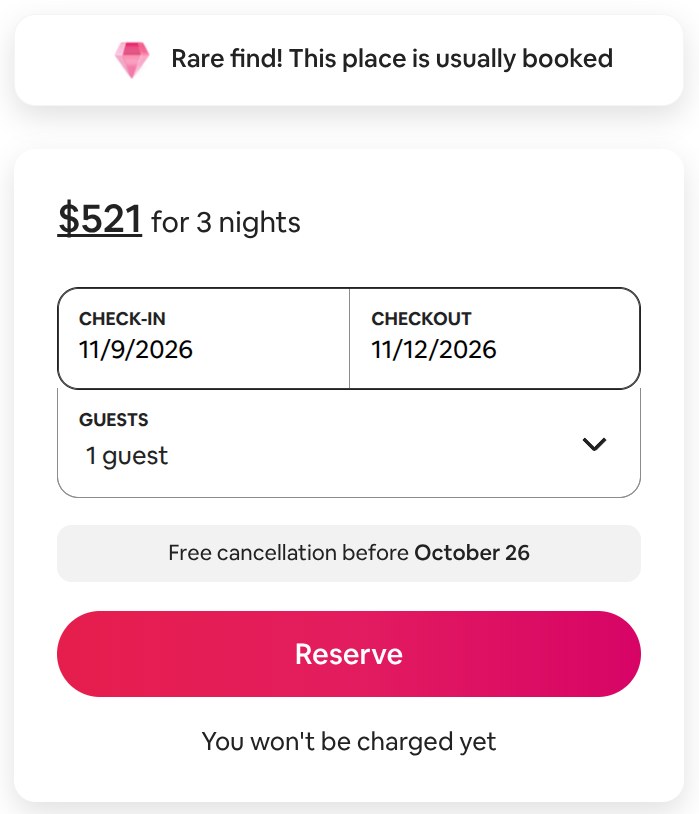
Line items to record and the decision rule
Airbnb's announcement describes a search price that includes all fees before taxes, with taxes included in some countries and regions. So check how your screen labels each figure.
- Switch to your guest account session, and follow the stop rule from the test setup.
- Use the same dates and guest count as your stage one search.
- Go to the checkout screen and record every line item it shows, for example the nightly subtotal, cleaning fee, service fee, taxes, and discounts, if shown.
- Compare the total with what the search tile and the listing page showed.
Decision rule: a fail is any line item or total the guest could not have expected from the search tile and the listing page. Your cleaning fee and base rate are settings you control, so start there if the total looks different.
Discounts and whether they appear correctly
If you have discounts set up (for longer stays, or for bookings made early or late):
- Pick a stay that qualifies for each discount.
- Check how the discount shows on screen: as its own line, or reflected in the nightly price.
- Record whether it matches what you set.
A discount that is not reflected anywhere on screen is a setting to check, not a pricing strategy.
| Check | What to record | Fail if |
|---|---|---|
| Line items match the expectation the tile set | The nightly subtotal, cleaning fee, service fee, taxes and discounts | A fee or total the guest could not have anticipated from earlier screens |
| Discounts show for qualifying stays | How each discount shows on screen | A discount you set is not reflected anywhere on screen |
Stage five: booking requirements and policy friction
Goal: check what a guest meets at the last step, and whether any of it stops a guest you would accept.
Instant Book versus request, and what the guest encounters
- On your guest screens, note whether the final button completes a booking or sends a request.
- Note what the guest is told happens next.
- Check your current setting in your host account and record it.
If the button sends a request, the guest may have to wait for your answer, and that wait can be friction. A request does not make your listing unbookable. But a similar listing that books straight away can become the easier choice.
Then review your guest requirements:
- Open your booking settings in your host account and list every guest requirement that is switched on.
- For each one, ask whether it could stop a guest you would accept.
- Confirm each requirement is intentional and no more restrictive than you need.
- If a requirement blocks your test guest, record the message the guest sees, and whether it says what they can do next.
House rules, cancellation policy, and the final friction before booking
House rules. Read them from the guest view. Are they clear, specific, and proportionate to the real risks of your property?
- Vague rules communicate nothing.
- Exhaustive or punitive rules can read as distrust, even to guests who intend to follow every rule.
- The goal is rules complete enough to protect you and clear enough that a guest can read them quickly and feel confident they qualify.
Cancellation policy. Guests can read the cancellation policy before they commit.
- A strict policy raises the cost of a booking error for the guest. A flexible policy lowers it.
- Neither is universally better. The right policy depends on your market, your lead time, and how often you can rebook a canceled date.
- For the audit, check two things: the policy shown on your listing page matches the policy you believe you set, and a guest reading quickly can understand it.
| Check | What to record | Fail if |
|---|---|---|
| Instant Book or request is intentional | The setting | Request to book is active without a deliberate reason |
| Guest requirements are no stricter than needed | The active requirements | A requirement blocks a guest who would otherwise be a good fit |
| House rules are clear and proportionate | Any rule that is vague or punitive | A rule would deter a reasonable guest |
| Cancellation policy matches what you set | The policy name | The displayed policy is stricter than intended |
Audit scorecard
Each stage above ends with its own checks. To keep a full record:
- Run one pass for each date window and guest count combination you test.
- Copy each stage's checks into one row per pass.
- Mark every check with one of three results:
- Pass
- Fail: each fail is a specific action item.
- Not reachable: write the reason (for example, the logged-out view stopped before checkout). A skipped check must never read as a pass.
| Result | What it means | What to do |
|---|---|---|
| Pass | The guest screen matched what you intended | Nothing, until the next scheduled pass |
| Fail in one cell of the matrix | A targeted problem | Fix that setting, then re-test that cell |
| Fail across several cells | A systemic setting problem | Fix the shared setting, then re-run the full matrix |
| Not reachable | The audit could not get to that screen | Record why, and test it another way if you can |
How to repeat the audit for different date windows and stay lengths
Building a test matrix
One audit pass tells you about one combination of dates and guest count. Your matrix should cover the stay types your market actually produces.
Use the stay lengths and guest counts from the test setup: three stay types, each tested at your most common guest count and one count either side, capped at capacity. Record each pass as a separate row of your scorecard.
When to re-run the audit
Re-run it:
- After a change to your pricing, availability settings, photos, or house rules.
- At the start of each season, because the dates that matter to guests change. A setting that was fine in low season may create orphan gaps in high season, when bookings are denser.
- When your booking pace slows unexpectedly, before you consider a price change.
That last point matters most. A price cut on a listing with friction in the booking flow does not fix the flow. It can reduce your revenue and leave the friction in place.
Frequently Asked Questions
How do I audit my Airbnb listing without accidentally booking it myself?
Use a separate guest account with no saved payment method for stages four and five, and stop before the final confirm or request button. The full stop rule is in the test setup.
What is an orphan gap and how do I find one?
An orphan gap is a stretch of available nights between two bookings that is shorter than your minimum stay. To find one, open your listing page in a clean session and try to start a booking for every gap between existing bookings. If the picker refuses a gap, check whether the cause is minimum stay, preparation time, advance notice, or a manual block. Only a gap shorter than your minimum stay is an orphan gap.
Why might the checkout price look different from what I saw earlier in the flow?
The search figure and the checkout total may not cover the same charges. Airbnb's announcement describes a search price that includes all fees, with taxes included in some countries and regions, and says the total including taxes is always displayed before checkout. So check how your screen labels each figure. If the totals still differ, work through each line item. Your nightly subtotal, cleaning fee, and discounts are settings you control, so start there.
Does switching to Instant Book affect where my listing appears in search results?
This guide cannot answer that, and it makes no claim about how search treats Instant Book or any other single setting. Airbnb explains the factors its search considers in its help article on how search results work. What the audit can show you is the guest side: whether your final button books or sends a request, and what the guest is told happens next. Whether to use Instant Book depends on your vetting preferences and your tolerance for that extra step.
How often should I run a booking flow audit?
Run a full audit after any meaningful settings change, at the start of each season, and whenever your booking pace drops without an obvious outside cause. If your listing has a high booking density, also check the calendar stage monthly, because new bookings can create orphan gaps that did not exist at your last check.
My listing appears in search but I am still not getting bookings. What should I check first?
Follow the stages in order, so you find the earliest point of failure instead of assuming the problem is in the last stage you checked:
- Stage one: does the listing appear for the dates and guest counts you target?
- Stage two: do the photos and the listing page price give a guest a reason to continue?
- Stage three: is calendar friction blocking the dates?
- Stage four: does the checkout breakdown hold a surprise?
- Stage five: do your requirements or cancellation policy stop the guest?
A strict cancellation policy combined with request to book can add two points of friction before a guest commits.
Can amenity filters hide my listing before a guest even clicks?
They can, so test it. Guests can filter by amenity, as Airbnb's help article on how search results work says. In your logged-out search, apply each amenity filter a guest would use for your area. If your listing is missing for an amenity you provide, check first whether that amenity is selected in your listing settings. Stage one covers the full test.
Sources
This guide is a procedure you run yourself on your own listing. It uses two external references:
- the Airbnb newsroom announcement Total price display is now standard for guests worldwide, cited in the TL;DR and the price sections
- the Airbnb help article on how search results work, cited in the Frequently Asked Questions
Every other check in this guide is an observation you make on screen during the audit itself.
About the Author
Revande provides revenue management for short-term rental operators. Its Performance service includes full software stack dynamic pricing, daily adjustments by experienced rate strategists, Airbnb listing performance monitoring and email alerts for low visibility or booking conversion, and monthly reports. Its Maestro service includes everything in Performance, plus done-for-you listing optimization, proactive Airbnb listing performance monitoring with visibility and booking conversion issues handled for you, ongoing listing refinements, and it works with Airbnb or your channel manager.
Where this becomes someone else's job
Running a booking flow audit once is a task. Running it after every setting change, across several date windows, and at the start of every season is a process.
Hand it off when either is true:
- the same failure keeps returning across the cells of your test matrix after you have fixed it, or
- you cannot re-run the audit each season and after each settings change.
Revande's Performance service includes full software stack dynamic pricing, daily adjustments by experienced rate strategists, Airbnb listing performance monitoring and email alerts for low visibility or booking conversion, and monthly reports.
Revande's Maestro service includes everything in Performance, plus done-for-you listing optimization, proactive Airbnb listing performance monitoring with visibility and booking conversion issues handled for you, ongoing listing refinements, and it works with Airbnb or your channel manager.
Ready to hand it off? Sign up for Revande and choose Performance or Maestro.
Related articles
- Airbnb Booking Conversion: the four funnel stages read from your metrics, which this audit feeds.
- Minimum Stay Strategy: how to set the stay length rules that stage three tests.
- PriceLabs Minimum Stay Settings: where those rules live if PriceLabs manages them.
- Search Visibility Test Protocol: the deeper version of the stage one check.
- Weekly Funnel Evidence Log: where to record the weekly funnel numbers each audit run is compared against.
- Listing Change Log Template: a record of every fix, so a later audit can tell what changed.